Route Setting
The route is a calculated flight path based on the selected drone and payload profiles, selected parameters in each toolset, and camera actions.
The route can consist of one or multiple segments.
Route parameters
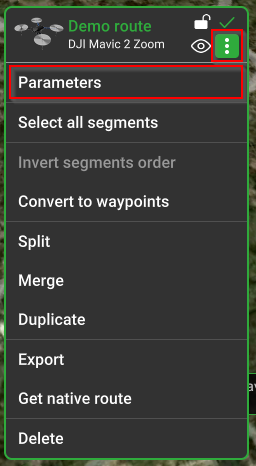
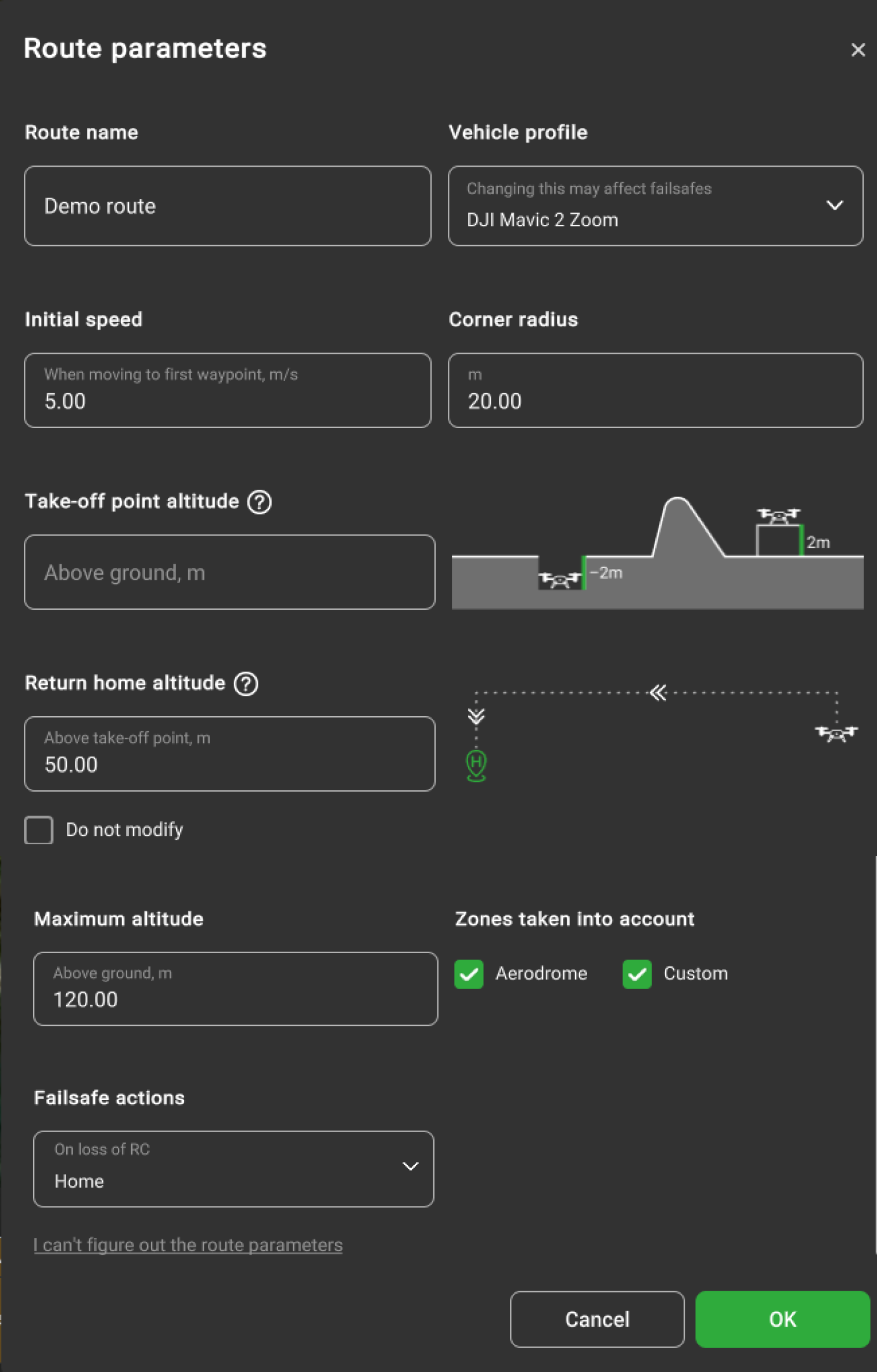
Take-off point altitude above ground, m – is the drone's real altitude relative to the ground.
If the drone is placed on an object above the ground level or in the pit below the ground level not represented in elevation data. Take-off point altitude is a vital parameter for route calculation. It must be used when a vehicle takes off from a surface that is higher or lower than the ground (for example, a podium or a building roof).
Another case when "Takeoff altitude" must be used is when the elevation data is incorrect.
For example, if inspecting the career (or mound) that doesn't exist in the elevation model. If the career (or mound) doesn't exist in the elevation data, the below message will appear:
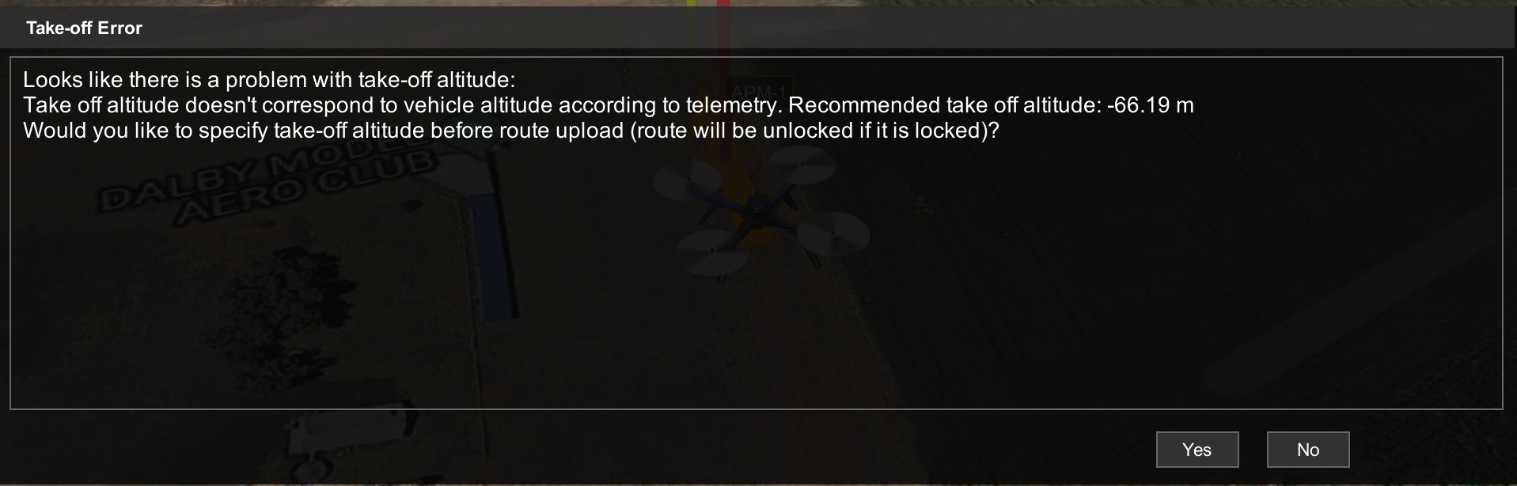
This message only appears when the drone is in RTK_FIX mode.
Note: it is highly recommended always to check altitude values. Altitude drift problems cannot be solved by software only and require operator attention. Always check whether the altitude is reported correctly after power cycling a vehicle or mission upload. UgCS tries to detect such conditions and warns, “It looks as if you have to power on/off your drone in order to reset barometer...” if the RAW altitude reported by the vehicle is very different from 0 at the time of mission upload.
🏠 Home Location
Home location is the point where the vehicle should return in case of a failsafe condition. This can be triggered automatically or by the operator giving the Return to Home command.
🔧 Failsafe Conditions
Typical failsafe conditions include:
- Loss of RC (Remote Control)
- Low battery charge level
⚙️ "Do not modify" Option
The “Do not modify” option specifies that autopilot actions for these settings remain default and are not modified. This option can be found in the drop-down list for each Failsafe action.
📍 Home Position Details
The home position is usually the point of initialization.
You can easily view the home location of the vehicle by clicking “Focus on home location” in the vehicle's context menu.
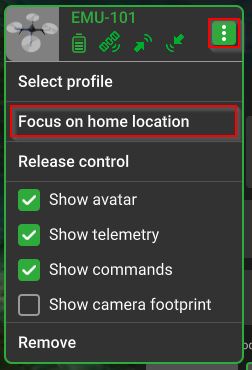
Note: Every autopilot and thus vehicle might handle Home Location functionality differently. Please read the corresponding section in the vehicle’s VSM User guide for safe use.
Return home altitude, m (above take-off point) modifying this parameter will affect the manual and automatic return home function, the vehicle will go to a specified altitude when returning home.
🚀 Initial Speed (m/s)
The initial speed is the default value from the drone profile. It sets the speed from the home point to the first point of the route, including when the option “Take-off to route’s first waypoint” is checked. ➡️ This value can be overridden by the user.
🔄 Corner Radius (m) (DJI drones only)
The corner radius controls the curvature of the flight path when Adaptive Bank Turn waypoints are used.
- The default value is from the drone profile.
- DJI drones limit the corner radius to 1/3 the length of the shortest adjacent segment.
- If a higher value is set, UgCS automatically reduces it to the allowed maximum.
🗻 Maximum Altitude Above Ground (m)
This is the altitude limitation for the entire route. The altitude type (above ground or above mean sea level) will change if the route's altitude type is adjusted.
⚠️ Failsafe Actions
These are predefined emergency actions that can be configured:
- Action on GPS loss
- Action on RC loss
- Action on battery discharge
- Datalink loss For each, the user can configure the drone to:
- Wait
- Land
- Return to Home
- Continue the route (if GPS is available)
✅ Best Practices
Usually, only the home position and safe altitude need to be explicitly defined.Other parameters come with reasonable default values based on the drone's specifications.
However:
- Ensure that all values are correct and non-conflicting.
- UgCS performs automatic validation checks.
- If values are invalid, route creation will be cancelled, and:
- The error will appear at the bottom of the window.
- The problematic parameter will be highlighted.